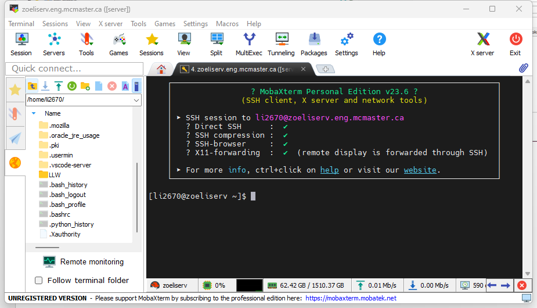
Connect to the Server
Warning
Please make sure you are in McMaster Network or already connected to VPN before connecting to the server.
Terminal
Start a cmd (Windows) or terminal (MacOS) on your computer.
Note
You may need to check if SSH function is activate on your Windows by this link.
Input the following command:
ssh [username]@[server name]

It will let you accept identity, then input yes. Then you can input your password for server.
Note
The Linux will not showing password and you can just enter it.
You will see this if you login successfully.

MobaXterm
Click Session to start a new session on MobaXterm
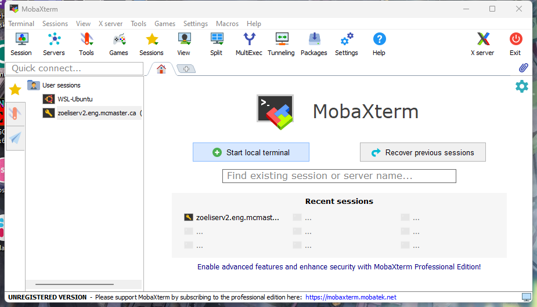
Click SSH tab to create new SSH connection, then input Remote host and Specify username information. Click the Password icon before port to manage the credentials for server. You can select the saved credentials by drop-down menu of Specify username.
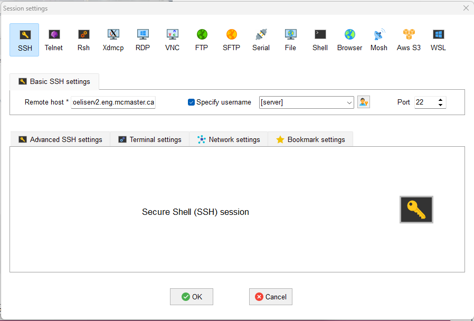
Note
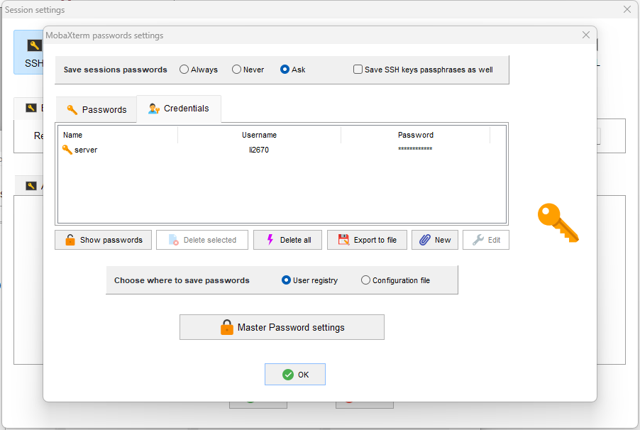
The server will require all users change the password when you first login, please update your credentials after change you password.
Click Credentials tab to and click New button to input your user name and password.
After create a connection, you will notice there is a new connection on the left side bar. Click the new connection and accept identity.
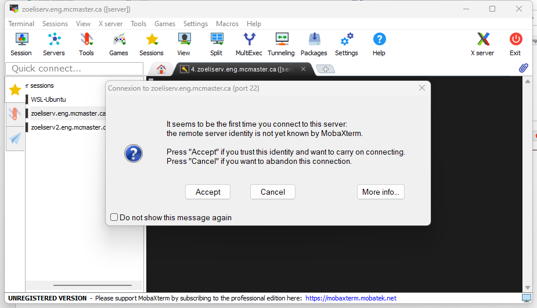
Now you are login the server.